


How to troubleshoot BMW iDrive connection issues with iPhone
Did you know that modern luxury vehicles have over 100 million lines of code? It is no surprise that even the most advanced systems sometimes have digital problems.
I made this guide to help you deal with vehicle software issues when your phone won’t sync. Many drivers get really upset when their devices don’t work. But most problems can be fixed with a simple plan.
This article will show you how to make sure your car and phone talk to each other without any issues. We’ll cover everything from basic settings to advanced methods. This will get you back on the road fast.
Key Takeaways
- Identify common software conflicts between your vehicle and mobile device.
- Learn the importance of keeping your firmware updated for stability.
- Master the process of clearing cache and resetting network profiles.
- Discover why specific cable types impact data transfer performance.
- Follow a step-by-step method to restore seamless wireless integration.
Common iDrive Connection Problems
Figuring out how to troubleshoot BMW iDrive connection issues with iPhone starts with spotting common problems. These issues are often not due to hardware but software conflicts. A careful approach is needed to fix them.
Identifying Connection Issues
One big BMW iDrive connection problem is when many devices are paired at once. If two iPhones are connected to the car, it gets confused. This can make the iDrive connect to the wrong phone or not connect at all.
Look for signs of old software or corrupted cache files too. If your car can’t pick the right iPhone, you might face problems with music, navigation, and calls. Spotting these signs is the first step to fixing the issue for good.
Troubleshooting Steps to Follow
To find the problem, follow a step-by-step guide. Test different things to see if it’s the car’s system or your phone settings. The table below shows where to start when you see pairing errors.
| Diagnostic Area | Common Symptom | Primary Action |
|---|---|---|
| Device Priority | System connects to wrong phone | Remove secondary devices |
| Bluetooth Cache | Intermittent signal drops | Clear paired device list |
| Software Version | Feature incompatibility | Update iOS and iDrive |
| Signal Interference | Slow pairing response | Toggle Airplane Mode |
After finding the problem, you can fix it with specific actions. Consistency is important in managing these connections. Keep your paired devices list clean to avoid future problems.
Checking Bluetooth Settings on Your iPhone
When I face BMW iDrive connection problems, I first check my phone’s wireless settings. Often, a quick refresh is all it takes to fix the issue.
If your iPhone BMW iDrive not working right, don’t worry. Most problems are small software bugs that can be fixed quickly.
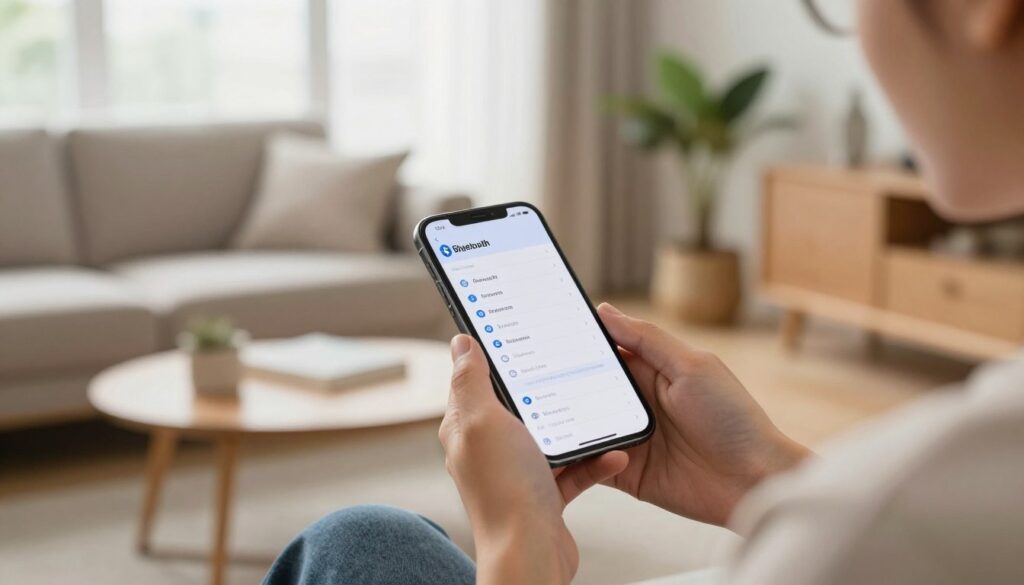
Enabling Bluetooth on Your iPhone
The first thing to try is to turn Bluetooth on and off. Wait a few seconds before turning it back on. This re-establishes the handshake between your devices.
This simple step makes your iPhone scan for signals again. It often fixes temporary errors that stop your car from seeing your phone.
Forgetting and Re-Pairing Devices
If turning Bluetooth on and off doesn’t work, try a fresh start. Remove the current connection to clear out any corrupted cache data.
Go to your Bluetooth menu, pick your BMW, and choose “Forget This Device.” Also, delete your phone from the iDrive menu on your dashboard.
After clearing both sides, restart your phone and start pairing again. This method is great for iPhone BMW iDrive not working issues. It ensures a clean, error-free connection.
Updates and Compatibility
When your iPhone BMW iDrive not working, it’s often because of an outdated operating system. I’ve found that software that doesn’t match between your phone and car can cause problems. Keeping both systems up to date is the best way to avoid these issues.
Ensuring Your iPhone Has the Latest Software
Always check for the latest iOS updates on your phone. This ensures it works well with modern car systems. Apple often releases updates that fix Bluetooth handshake protocols, which are important for your car.
By updating your device, you help it talk better with your car’s software. If you don’t update, you might run into problems that make your daily drive harder. Consistency is key in keeping your phone and car connected.
Checking BMW Firmware Updates
Also, visit the official BMW support portal to check for iDrive firmware updates. These updates fix common BMW iDrive Bluetooth troubleshooting problems. I suggest checking this site at least twice a year to keep your system running smoothly.
The table below shows why keeping both systems updated is important to avoid connection problems:
| Update Type | Primary Benefit | Frequency | Impact on Connectivity |
|---|---|---|---|
| iOS System Update | Security & Protocol Fixes | Monthly | High |
| iDrive Firmware | Hardware Compatibility | Bi-Annually | High |
| App Updates | Feature Optimization | Weekly | Moderate |
Resetting Your BMW iDrive System
Resetting the iDrive system often solves software conflicts. If usual fixes don’t work, a reboot can help. It’s a key tool for iPhone iDrive connectivity fixes.
How to Perform a Soft Reset
A soft reset is safe and doesn’t lose your settings. It refreshes the system without deleting your data. It’s the first thing I suggest when the system won’t respond.
To do a soft reset, follow these steps:
- Make sure your car is parked safely with the engine on or in accessory mode.
- Find the volume knob on your center console.
- Press and hold the volume knob down for about 30 seconds.
- Wait for the iDrive screen to go black and then come back with the BMW logo.
Factory Reset: When to Consider It
A factory reset is more extreme. I only recommend it as a last resort for serious system errors. It will erase all your personal data, including contacts and custom settings.
Think about this option only if all else fails. Make sure to back up important data first. You can find the “Reset vehicle data” option in your iDrive settings menu.
Bluetooth Profiles in iDrive
Learning about your BMW’s Bluetooth profiles is key to using your car’s features. Many think pairing is enough, but it’s more complex. Bluetooth profiles are like a language that lets your iPhone talk to your car.
When you do BMW iDrive Bluetooth troubleshooting, remember profiles control what your device can do. If a profile is off or wrong, you might miss out on some features. For example, you could make calls but not stream music.
Understanding Bluetooth Profiles
Bluetooth profiles are like special channels for different data types. The Hands-Free Profile (HFP) is for phone calls, and the Advanced Audio Distribution Profile (A2DP) is for music. If your iPhone is only paired for one, the other won’t work.
These settings can get changed during updates or glitches. By manually checking these profiles, you can fix connectivity issues yourself. This is a basic step in BMW iDrive Bluetooth troubleshooting that many miss.
Verifying iDrive Bluetooth Settings
To see your current settings, go to the “Communication” or “Telephone” menu on your iDrive. Pick your iPhone from the list to see its settings. You’ll find boxes or toggles for services like “Audio” and “Telephone.”
Make sure all boxes are checked for full integration. If a service is grayed out or off, turn it on manually. Doing this ensures your car works well for your daily drive.
iPhone Settings Adjustments
Specific iPhone settings can block a stable iDrive connection. It’s easy to blame the car when your device and vehicle don’t talk right. But, making the right iPhone iDrive connectivity fixes can fix it without a pro.
Privacy Settings and Permissions
Your iPhone protects your data well, but it might block car integration. If you’ve denied permissions, your phone won’t share contacts or media with iDrive. Check your Bluetooth settings to make sure “Sync Contacts” and “Show Notifications” are on.
Also, where you put your iPhone matters. Putting it on a wireless charging pad can start Apple Pay. This unintended interaction can break the CarPlay session and drop the connection.
Turning Off Low Power Mode
Low Power Mode saves battery but hurts performance. It slows down your iPhone to save energy. But, this slows down the data exchange needed for a seamless link with BMW iDrive.
Turning off Low Power Mode lets your device focus on data exchange. If drops keep happening, check your battery level. It should be enough for high-performance features. Here’s how common settings affect your experience.
| Setting Name | Impact on Connectivity | Recommended Action |
|---|---|---|
| Low Power Mode | High (Throttles background data) | Turn Off |
| Privacy Permissions | Medium (Blocks data sync) | Enable Access |
| Wireless Charging | Low (Triggers Apple Pay) | Reposition Phone |
By making these iPhone iDrive connectivity fixes, you’ll keep a reliable connection. Taking control of these settings makes your tech work for you, not against you.
Connectivity with Other Devices
Mastering your BMW iDrive iPhone setup tips means managing your car’s wireless environment. If pairing fails, don’t blame your phone right away. Check your car’s communication module first.
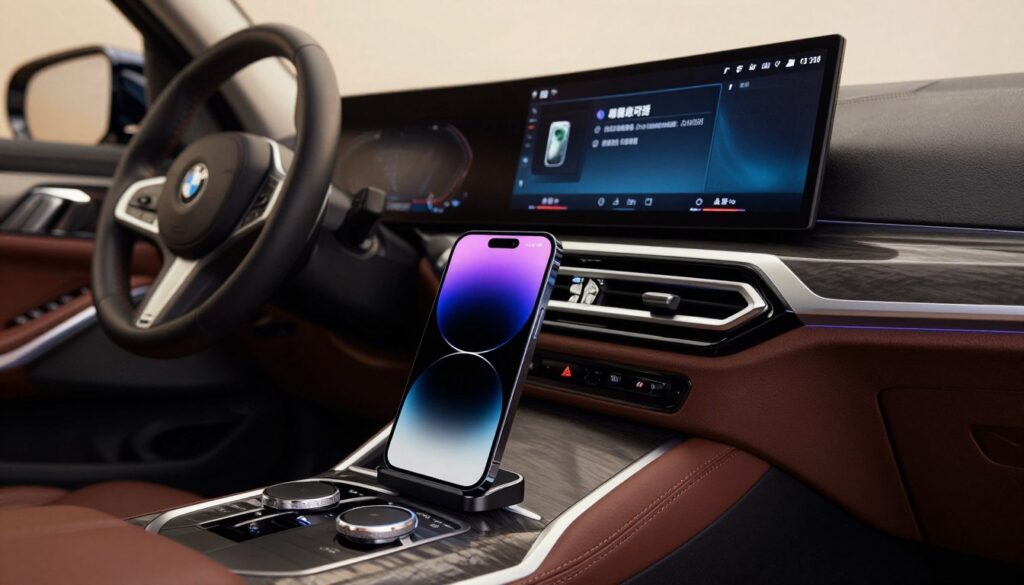
Testing with Different Smartphones
Try using a different smartphone with the iDrive system. If it works, the problem is with your phone. This simple test can save you time and frustration.
If you’re having trouble, check these quick fixes for BMW Bluetooth. Maybe a system reset is needed.
Isolating the Issue to Your iPhone
Often, the problem isn’t a broken system but a competing signal. Other Apple devices can cause trouble if they’re connected to the car’s Wi-Fi or Bluetooth.
To avoid issues, follow these steps:
- Turn off Bluetooth on all secondary devices inside the car.
- Make sure no other devices are trying to connect to the car’s Wi-Fi.
- Turn off the ignition and restart the iDrive system after clearing these conflicts.
By removing these distractions, your primary device can connect smoothly. These BMW iDrive iPhone setup tips will keep your connection reliable during your commute.
Network Settings Reset
Resetting your network settings can solve tough problems between your phone and car. It’s a strong solution when other BMW iDrive iPhone setup tips don’t work. This method clears your device’s wireless settings, giving it a fresh start.
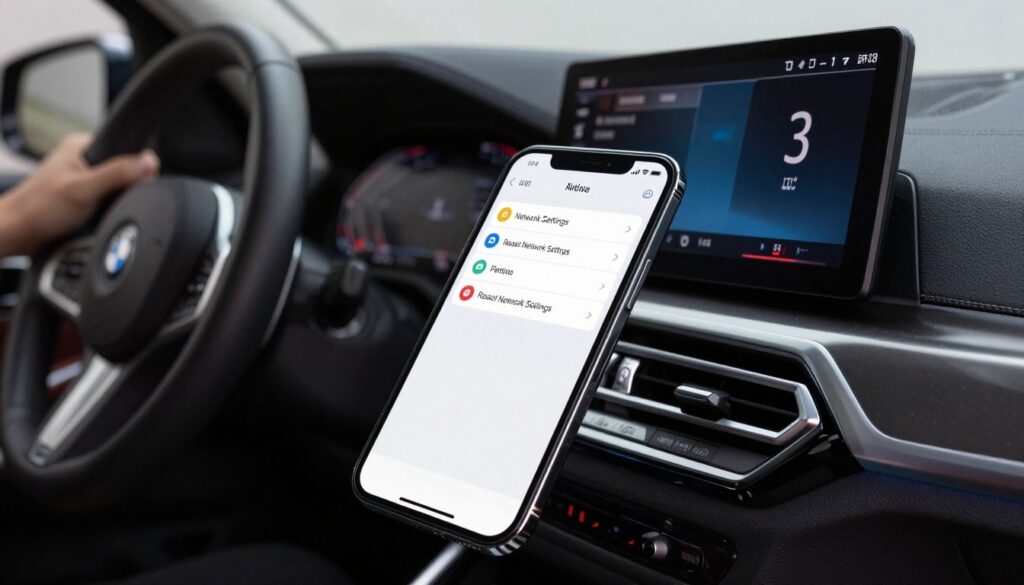
How to Reset Network Settings on iPhone
To reset your network settings, go to your iPhone’s Settings menu. Tap on General and find Transfer or Reset iPhone. Then, choose Reset and pick Reset Network Settings.
You’ll need to enter your device passcode to confirm. After that, your iPhone will restart. This is often needed to fix bugs, as seen in community forums about connectivity.
What Happens After Resetting?
This reset isn’t a full factory reset of your phone. But, it clears your saved Wi-Fi networks, passwords, and Bluetooth pairings. You’ll have to reconnect to your Wi-Fi and pair your phone with your car again to fix troubleshooting BMW iDrive iPhone pairing issues.
| Feature | Standard Troubleshooting | Network Settings Reset |
|---|---|---|
| Wi-Fi Passwords | Retained | Cleared |
| Bluetooth Pairings | Retained | Cleared |
| Cellular Data | Retained | Reset to Default |
| System Files | Untouched | Untouched |
After the reset, your iPhone will act like it’s connecting to services for the first time. This often fixes deep-seated problems that stop your phone and iDrive system from connecting well.
Advanced Troubleshooting Tips
When simple fixes don’t work, advanced tools and expert help are key. Some problems might be with the car’s hardware, not just software. For example, the M850i’s satellite radio antenna in the rear fender can cause reception issues that look like digital problems.
Using BMW Connected App for Connectivity
The BMW Connected app is a great tool for managing your car’s digital setup. It offers advanced diagnostic tools to find and fix connection issues between your phone and the iDrive system. Keeping the app updated ensures your car stays connected smoothly.
For more detailed help, check out this BMW CarPlay troubleshooting guide. It might help you fix your setup. Using these tools can often solve pairing problems without a visit to the dealership.
Contacting BMW Support for Assistance
If you’ve tried everything yourself, it’s time to call BMW support. A certified tech can look at deeper system logs that you can’t see. They can figure out if your car needs a software update or if a part needs checking.
If you can’t solve BMW iDrive iPhone not connecting after trying everything, BMW support is your next step. Give them your car’s ID number and a clear description of the problem. Professional guidance keeps your car’s tech in top shape for your daily drive.
Preventative Measures for Future Issues
Keeping your iPhone and BMW iDrive connected is key. Make sure to check for updates regularly. This includes both iOS and iDrive firmware updates.
You can solve BMW iDrive iPhone not connecting by keeping your system software current. This simple habit prevents many common software conflicts before they start.
Proactive Maintenance Strategies
Regular maintenance is essential for a smooth driving experience. Check your device settings often to avoid iPhone BMW iDrive Bluetooth problems. These issues often come from outdated settings.
Managing your paired devices by removing old profiles helps keep the communication channel clear. If you encounter persistent glitches, consider a clean re-pairing process. This refreshes the handshake between your hardware and the car.
Optimizing Your Digital Experience
Keeping your iPhone name unique and clear helps the system identify your device quickly. These best practices minimize the likelihood of encountering future pairing or connectivity problems during your daily commute.
Taking these small steps ensures your technology works for you. Enjoy the convenience of your integrated cabin features by staying ahead of technical hurdles.
FAQ
How can I troubleshoot BMW iDrive connection issues with iPhone when my device fails to pair?
Start by soft resetting the iDrive system. Hold down the volume knob for about 30 seconds until it reboots. This often fixes temporary software glitches. Finding the root cause is key to a lasting solution.
Why does my iPhone struggle to connect when multiple devices are saved in the vehicle?
BMW iDrive sometimes can’t choose the right device among many. Try removing unused profiles. This makes sure your main iPhone connects smoothly, avoiding connection problems.
What are the most effective iPhone iDrive connectivity fixes if my connection remains unstable?
Forget the device on both the BMW and iPhone settings. Then, set it up again. This is a key step in fixing BMW iDrive Bluetooth issues, ensuring a strong connection.
Can updating my BMW firmware resolve persistent iPhone BMW iDrive Bluetooth problems?
Yes, updating your BMW firmware is a must. Check for updates on the official BMW website using your VIN. Also, keep your iPhone and BMW iDrive software up to date for a stable connection.
How do I perform a factory reset, and when should I consider it?
Consider a factory reset only if a soft reset doesn’t work. Access iDrive settings, go to “Data Privacy,” then “Delete Personal Data” to reset. This will erase all saved data and preferences.
Why does Low Power Mode cause troubleshooting BMW iDrive iPhone pairing issues?
Low Power Mode slows down background processes needed for a stable connection. Disable it to ensure full performance during pairing.
Are there specific BMW iDrive iPhone setup tips to avoid interference from the wireless charging pad?
Yes, placing your iPhone on the charging pad can trigger Apple Pay, disrupting the connection. Keep your phone away from the sensor or lock the screen to avoid this.
How can I isolate whether the connectivity issue is specific to my iPhone or the BMW system?
Test the iDrive system with another smartphone, like an iPad or another iPhone. If it connects fine, the problem is likely with your device, not the BMW.
What happens when I reset network settings on my iPhone to fix connectivity?
Resetting network settings clears Wi-Fi passwords, Bluetooth pairings, and VPN settings. It’s a strong step in fixing BMW iDrive iPhone pairing issues, removing any corrupted network settings.
When should I contact BMW support for professional assistance?
If all self-help steps fail and BMW Connected app tools show no errors, contact BMW support. Some issues, like radio dropouts, might need a tech check.
What are the best practices for maintaining future iPhone and iDrive connectivity?
Regular maintenance is key. Check for BMW firmware updates every few months and keep your iOS current. Also, verify Bluetooth profiles in the iDrive menu to ensure a smooth experience.

Hi! I’m Moheen Iftikhar, the founder of “CarSpherei.” I’m passionate about everything automotive — from the latest car trends and cutting-edge technology to driving tips and expert insights. Through CarSpherei, I share in-depth reviews, helpful guides, and practical advice to keep every car enthusiast informed, inspired, and connected to the world of driving.


Hi
Register carspherei.com in GoogleSearchIndex and have it be displayed in online search results!
Hello
Enlist carspherei.com in GoogleSearchIndex to show up in online search results!
Your site looks good, but it’s not ranking.
I can fix this and place it on Google’s 1st page.
Shall I send pricing?
Thank you,
Alina