


How to use Hyundai Digital Key on Android and iPhone
Did you know nearly 80% of drivers now prefer smartphones over traditional keys? This change makes getting into your car much easier. You can say goodbye to bulky keys.
I’m here to show you how to use your phone as a key. Learning How to use Hyundai Digital Key on Android and iPhone makes driving more convenient. It turns your daily drive into a smooth, tech-forward experience.
Just a few steps, and you can unlock, start, and control your car with a tap. This innovation keeps you connected to your car. It also brings peace of mind with today’s security features.
Key Takeaways
- Transitioning to mobile access eliminates the need for traditional physical fobs.
- The setup process is compatible with both major mobile operating systems.
- You can securely unlock and start your vehicle using your smartphone.
- Managing your vehicle settings becomes more intuitive through the official app.
- Modern automotive technology provides enhanced security for every driver.
What is Hyundai Digital Key?
The Hyundai Digital Key is a big step up in managing your car. It uses your smartphone instead of a bulky key fob. This makes getting into your car easier and less stressful.
Overview of the Digital Key system
The system uses Near Field Communication (NFC) and Bluetooth Low Energy (BLE). It connects your phone to your car securely. This lets you lock, unlock, and start your car without touching it.
Planning a long trip? Look up Hyundai Tucson hybrid fuel economy tips. The Digital Key system makes managing your car easy and efficient. It’s designed to work well in any situation.
Benefits of using Hyundai Digital Key
One great thing about the Hyundai Digital Key is sharing access. You can give digital keys to up to three people. This makes sharing your car safer and easier.
The Hyundai Digital Key benefits also include better security. It uses strong encryption to keep your data safe. Here’s how it compares to old-fashioned keys.
| Feature | Traditional Key Fob | Hyundai Digital Key |
|---|---|---|
| Physical Presence | Required | Not Required |
| Access Sharing | Difficult/Physical | Easy (Up to 3 users) |
| Battery Dependency | High | Low (Phone-based) |
| Security Level | Standard | Advanced Encryption |
Embracing this technology has made my life easier. With my smartphone, I have full control over my car’s security and access.
Compatibility with Android and iPhone
Before you start, check if your phone works with the latest car tech. It’s key to know your Hyundai Digital Key compatibility to avoid headaches.
Supported devices for Android
For Android, your phone needs to meet certain tech standards. This ensures your car and phone talk securely and smoothly.
Here’s what your device should have:
- Operating System: Android 7.2 or later.
- Connectivity: Bluetooth 4.2 or later for stable pairing.
- Hardware: Integrated NFC capabilities for proximity unlocking.
Supported devices for iPhone
The Digital Key 2 system now works better with Apple devices. The needs are a bit different, but security and integration are key.
If setup issues pop up, check out troubleshooting steps for connection issues. Many wireless pairing issues are common across cars. Always ensure your iPhone is updated to the latest iOS version for full feature use.
Most iPhones with Apple Wallet support work. Just make sure NFC is on and your device is up to date for the best experience.
Setting Up the Hyundai Digital Key
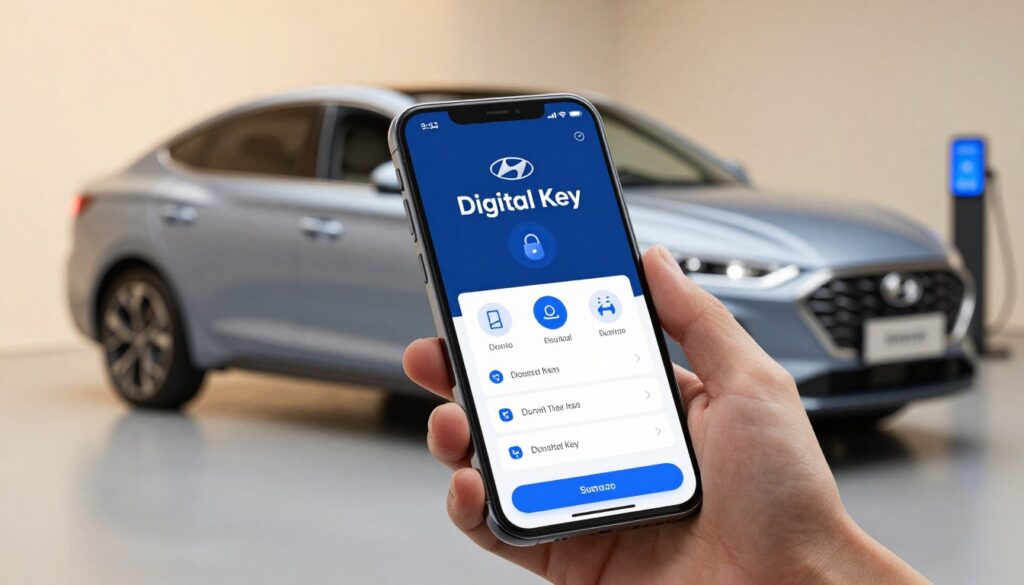
The Hyundai Digital Key setup is easy if you follow the steps. It lets your smartphone be your car key, making your daily drive easier. First, park your car safely and turn off the engine.
Prerequisites for setup
First, download the Hyundai Digital Key app from your device’s store. Then, log in with your MyHyundai account. Make sure your phone is fully charged for the pairing process.
- Active MyHyundai account with your vehicle registered.
- A compatible smartphone with NFC technology enabled.
- The official mobile application installed and updated.
- Access to your vehicle’s physical key fob for the initial pairing.
Step-by-step setup for Android
For Android users, start by opening the app and adding a new digital key. Place your phone on the vehicle’s wireless charging pad to pair securely. This step is critical for authorization.
- Launch the app and navigate to the vehicle settings menu.
- Follow the on-screen prompts to initiate the pairing sequence.
- Place your device on the wireless charging pad when instructed.
- Wait for the confirmation message to appear on your phone screen.
Step-by-step setup for iPhone
iOS users follow a similar process. After downloading the Hyundai Digital Key app, turn on Bluetooth and NFC. Place your iPhone on the wireless charging pad to complete the Hyundai Digital Key setup.
After pairing, your phone can lock, unlock, and start your car. Keep your car in good condition, like learning how long does a Hyundai Elantra battery last. Always update your phone for the best digital key performance.
How to Unlock Your Car with Digital Key
After setting up your Hyundai, unlocking it is easy. This Hyundai Digital Key tutorial shows you how to get into your car without a physical key. Your smartphone uses NFC technology to connect securely with your vehicle.
Unlocking methods for Android users
Android users will find the process very simple. Just hold your phone near the driver’s door for about 1 second. Your car will recognize your device and let you in.
Make sure your phone is on and NFC is turned on in your settings. You don’t need to open an app to unlock. This makes using the Hyundai Digital Key tutorial easy for daily use.
Unlocking methods for iPhone users
iPhone users can unlock their car through Apple Wallet. Just approach the driver’s side door and hold your iPhone near the sensor. Your car will unlock almost instantly.
With Express Mode, you don’t need to unlock your phone or use Face ID. This Hyundai Digital Key tutorial shows how it saves time. Just remember to keep your device charged for NFC.
| Feature | Android Requirement | iPhone Requirement |
|---|---|---|
| NFC Status | Enabled in Settings | Always Active |
| Authentication | Device Unlocked | Express Mode |
| Proximity | 1 Second at Handle | 1 Second at Handle |
| App Needed | Hyundai App | Apple Wallet |
Starting Your Hyundai Vehicle with Digital Key
Starting my Hyundai with a digital key is super easy. This Hyundai Digital Key tutorial will show you how to start your car without a physical key. Just use your smartphone’s NFC to unlock and drive away quickly.
How to start with Android
For Android users, starting your car is quick and easy. Just sit inside and place your smartphone on the wireless charging pad in the center console. This step lets the car check if it’s really you.
After your phone is recognized, press the brake pedal firmly. Then, hit the engine start button to turn on your car. This way, your car stays safe while you enjoy the convenience of not needing a key.
How to start with iPhone
Starting your car with an iPhone is just as simple. Just sit down and position your iPhone on the designated wireless charging pad to connect. Your car will know it’s you right away.
Once you’re all set, just press the brake pedal and the start button. This Hyundai Digital Key tutorial makes sure you can start your car easily every time.
Managing Your Digital Key Settings
Customizing my driving space is very rewarding. The Hyundai Digital Key benefits make my car ready when I arrive. It’s more than just convenience; it connects my digital world to my car.
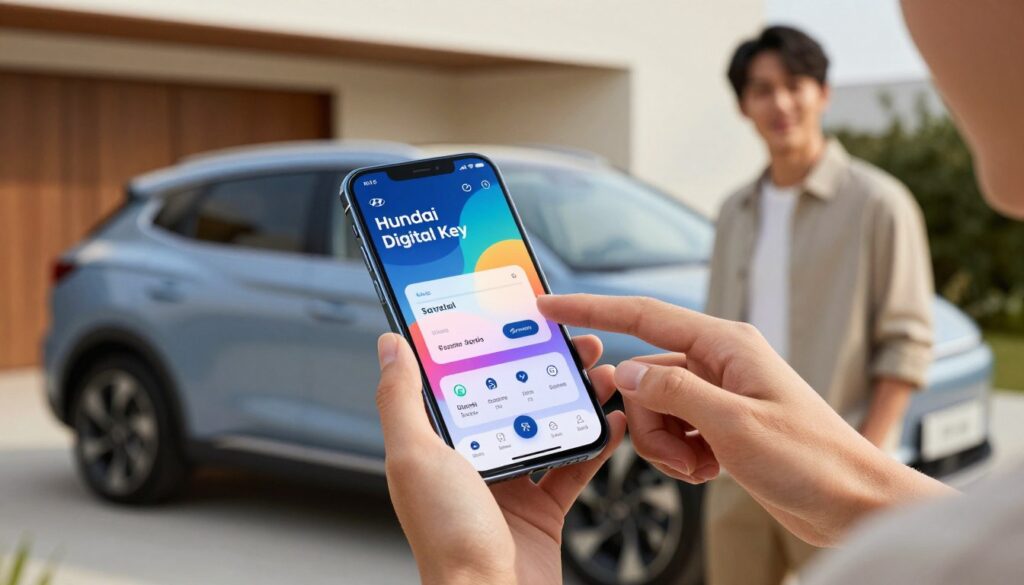
Using the Hyundai Digital Key lets me save my favorite settings. I manage these through the MyHyundai app. It’s the heart of my car’s digital profile.
Accessing key settings on Android
On my Android, I go to the MyHyundai app’s vehicle settings. Here, I link my profile to my digital key. This way, my settings are applied as soon as I get in.
- Driver-seat position: Automatically adjusts to my saved height and distance.
- Mirror angles: Sets side mirrors to my preferred visibility range.
- Climate control: Pre-sets the cabin temperature for maximum comfort.
Accessing key settings on iPhone
For iPhone users, the process is just as easy. I open the app, choose my vehicle, and go to the personalization tab. My iPhone becomes the main key, and my settings are applied right away.
Taking control of these features makes every drive perfect for me. Regularly checking these settings helps me get the most out of the Hyundai Digital Key benefits. This way, every drive is uniquely mine.
Adding and Removing Digital Keys
Learning how to use the Hyundai Digital Key setup lets you add or remove keys quickly. It’s great for controlling who drives your car. This keeps your vehicle safe while being easy for others to use.
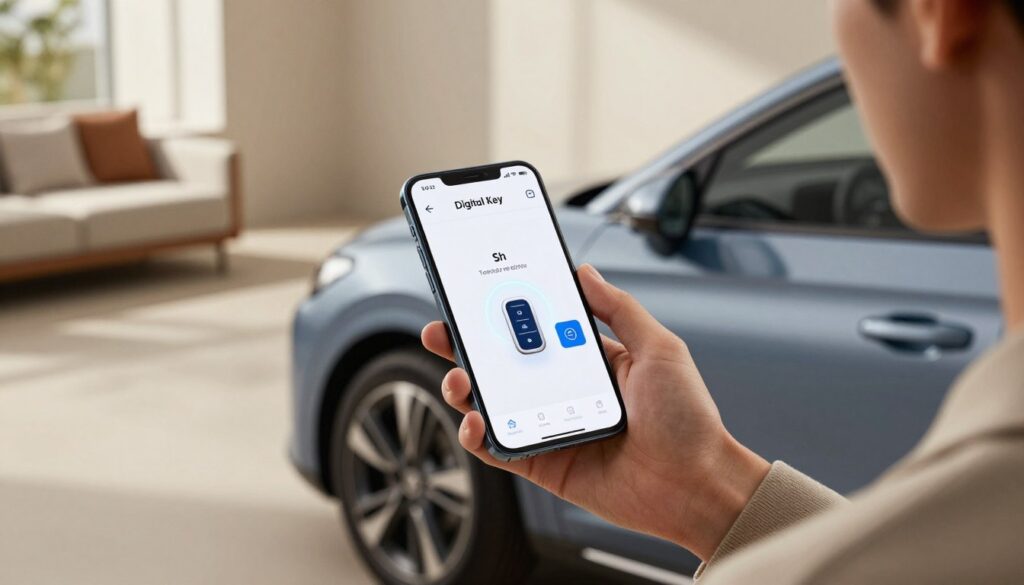
Adding new keys on Android
To share access on an Android, just open the app and tap share. You can invite up to three people by their email or phone number.
After they get the link, they just follow the steps to set up their Hyundai Digital Key. It’s easy and lets your guests in without a physical key.
Adding new keys on iPhone
Sharing access on an iPhone is easy through Apple Wallet. Go to the key details in your app and pick share.
You can send an invite via iMessage or other apps. It’s really handy to manage these permissions from your phone. Your car stays safe thanks to the encrypted connection.
“Technology is best when it brings people together and simplifies the complexities of our daily routines.”
Removing keys from both platforms
Removing access is quick through the app or your phone’s wallet. Whether it’s a temporary guest or a new driver, the change is instant.
Keeping your access list current is a smart security move. Regularly checking who has a digital key keeps your car safe.
Troubleshooting Common Issues
Even the best digital systems sometimes need extra care to work perfectly. If you run into trouble with your vehicle’s smart features, Hyundai Digital Key troubleshooting can help. Most problems are small and can be fixed by tweaking your smartphone settings.
Connection issues with Android
If your Android device won’t unlock the car, start by checking your hardware settings. Make sure Bluetooth and NFC are turned on on your phone. These are key for connecting your phone to the car. If the connection is weak, try turning these features off and on again.
Also, check if your phone’s battery settings are blocking the app. It’s important to keep your software up to date for a strong connection with your car.
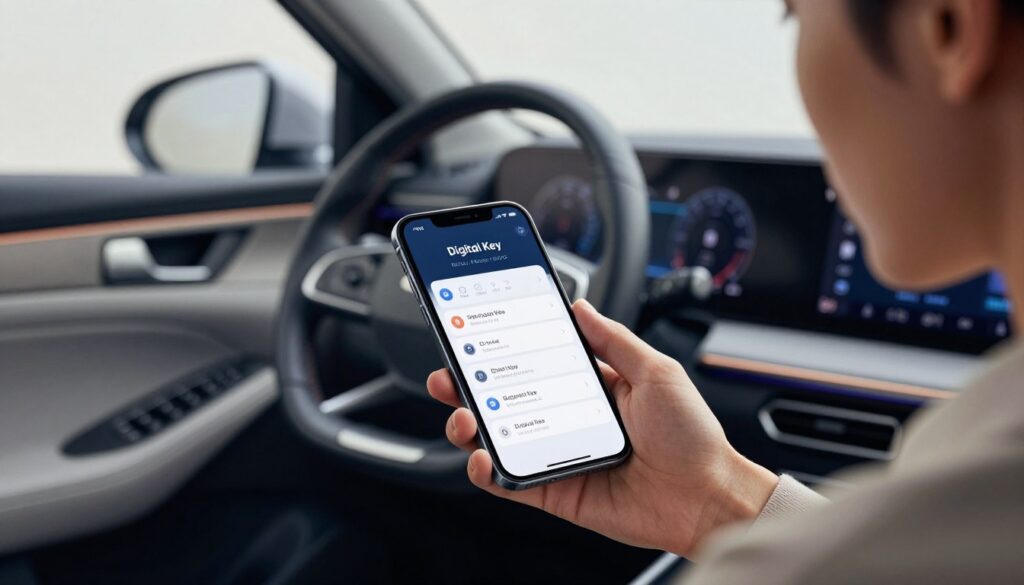
Connection issues with iPhone
iPhone users should look at their permission settings first. Make sure the app can access your location and Bluetooth at all times. If the digital key isn’t working, check your Apple Wallet to see if the key is active and set up right.
At times, restarting your iPhone can fix cache issues that stop it from connecting with the car. Always check that your iOS is up to date to meet your car’s security needs.
General troubleshooting tips
If problems persist, try a fresh Hyundai Digital Key app download. This ensures you have the latest version. Re-pairing your device with the car can also solve deep issues. Just remove the key from both the car and your phone, then start pairing again.
For tougher problems, look at the manufacturer’s support resources. Keeping your phone’s firmware updated is highly recommended for long-term use. By following these steps, you can keep your connection smooth and reliable every time.
Security Features of the Hyundai Digital Key
Security is my number one concern when it comes to my car’s tech. I want my vehicle to be safe from unauthorized access but also enjoy the latest technology. The Hyundai Digital Key features offer multiple layers of protection, giving me total peace of mind.
Encryption and data protection
My personal data is protected by strong encryption. This prevents anyone from intercepting it. The system uses top security standards to keep my car’s info safe from online threats.
For more details on how this works, check out the Hyundai Digital Key explained guide. It dives deep into the tech that keeps my car secure. I’m confident in the protection my vehicle offers.
User privacy considerations
The system also uses physical security to protect my privacy. It relies on NFC technology to ensure my car only unlocks when my phone is very close. This means I must be right there to unlock or start my car.
This approach greatly reduces the risk of someone stealing my car’s signal remotely. I love that these Hyundai Digital Key features focus on my safety without making things hard to use. My privacy is respected through these smart, physical security steps.
Frequently Asked Questions (FAQs)
I’ve put together a list of common questions to help you get the most out of your vehicle. Learning how to use Hyundai Digital Key on Android and iPhone can make your daily drive easier.
Common concerns about the Digital Key
Many people worry about what happens if their phone runs out of battery. Don’t worry, the NFC key card is there to help. Just tap it on the door handle to unlock your car.
If your Digital Key isn’t working right, Hyundai Digital Key troubleshooting can usually fix it. Make sure your Bluetooth is on and your app is up to date. If it’s not working, try restarting your phone. This often fixes the problem.
Usage tips for optimal experience
To get the best results, take off thick phone cases before charging. A thick case can block the NFC signal and stop your phone from being recognized.
For a smooth experience, always place your phone in the same spot on the charging tray. This keeps the connection stable. By following these tips, you’ll get the most out of your car’s modern features.
| Scenario | Recommended Action | Expected Result |
|---|---|---|
| Phone battery dead | Use NFC key card | Vehicle unlocks |
| Signal interference | Remove thick case | Improved detection |
| App not syncing | Restart Bluetooth | Restored connection |
| Key not recognized | Re-align on pad | Successful start |
Conclusion: Embracing Digital Convenience
Switching to a keyless lifestyle is a big step towards a modern driving experience. It makes my daily routine more efficient and easy to manage.
Maximizing Your Vehicle’s Full Potentials
Check out the Hyundai Digital Key compatibility to see how it changes your car use. It works with your smartphone, letting you control access and settings easily.
Future-Proofing Your Driving Routine
Keeping up with new features is key to getting the most from your car. Knowing about Hyundai Digital Key compatibility keeps your connection secure and reliable. Using these digital tools makes life simpler and keeps your car ready for the future.
FAQ
Can I use the Hyundai Digital Key if my phone battery is dead?
Yes, often. Modern phones and iPhones save power for NFC. I’ve unlocked my car even with a dead battery. Always carry the Hyundai NFC Key Card as a backup.
Is there a subscription fee for the Hyundai Digital Key?
No, usually. The service is free for a few years with Blue Link. Check your car’s sticker or MyHyundai for details.
Can I use the Digital Key for remote start?
The Digital Key starts the car when you’re inside. Remote start is through the Blue Link app. You can preheat your car from anywhere.
What should I do if I lose my smartphone?
Log into MyHyundai from another device or computer to revoke access. iPhone users can use “Find My” to suspend keys in Apple Wallet.
How many people can I share my digital key with?
You can share with up to three people. It’s great for households where many use the car without needing to swap keys.
Does the Digital Key work on the Apple Watch?
Yes, with Digital Key 2. You can add it to your Apple Watch. It’s handy for gym or beach trips without a phone or key fob.
## Conclusion: Embracing Digital Convenience
### Final thoughts on using Hyundai Digital Key
The Hyundai Digital Key is the top in car convenience. It connects our digital lives to our cars. While it takes some setup, the benefits of security and flexibility are clear.
### Encouragement to adopt the technology
Every Hyundai owner with a compatible device should try it. It adds a layer of security and shows a future without physical keys. Once you use it, you’ll never go back to traditional fobs.

Hi! I’m Moheen Iftikhar, the founder of “CarSpherei.” I’m passionate about everything automotive — from the latest car trends and cutting-edge technology to driving tips and expert insights. Through CarSpherei, I share in-depth reviews, helpful guides, and practical advice to keep every car enthusiast informed, inspired, and connected to the world of driving.